Connection Status Guide
NoLimitConnect supports both direct peer-to-peer connections and relay-assisted connections.
This guide explains how connectivity works and how to interpret the status indicator bars shown at the top of the application.
📡 How NoLimitConnect Connectivity Works
NoLimitConnect operates in two modes depending on whether your device can accept incoming connections.
1. Direct Peer-to-Peer (P2P) Mode
If your device has an open port, other devices can connect to you directly.
Advantages:
- Fastest data transfer
- Lowest latency
- Ideal for hosting chat rooms, groups, or random connect
- No relay dependency
2. Relay-Assisted Mode
If your device cannot open a port, NoLimitConnect automatically uses a relay host.
Relays allow full communication even if:
- You are behind strict NAT
- Your ISP uses carrier-grade NAT
- Port forwarding is not possible
- Firewall rules block inbound traffic
Important: You can still communicate socially in relay mode,
but you cannot host unless your own port is open.
🖼 Network Traffic Diagram
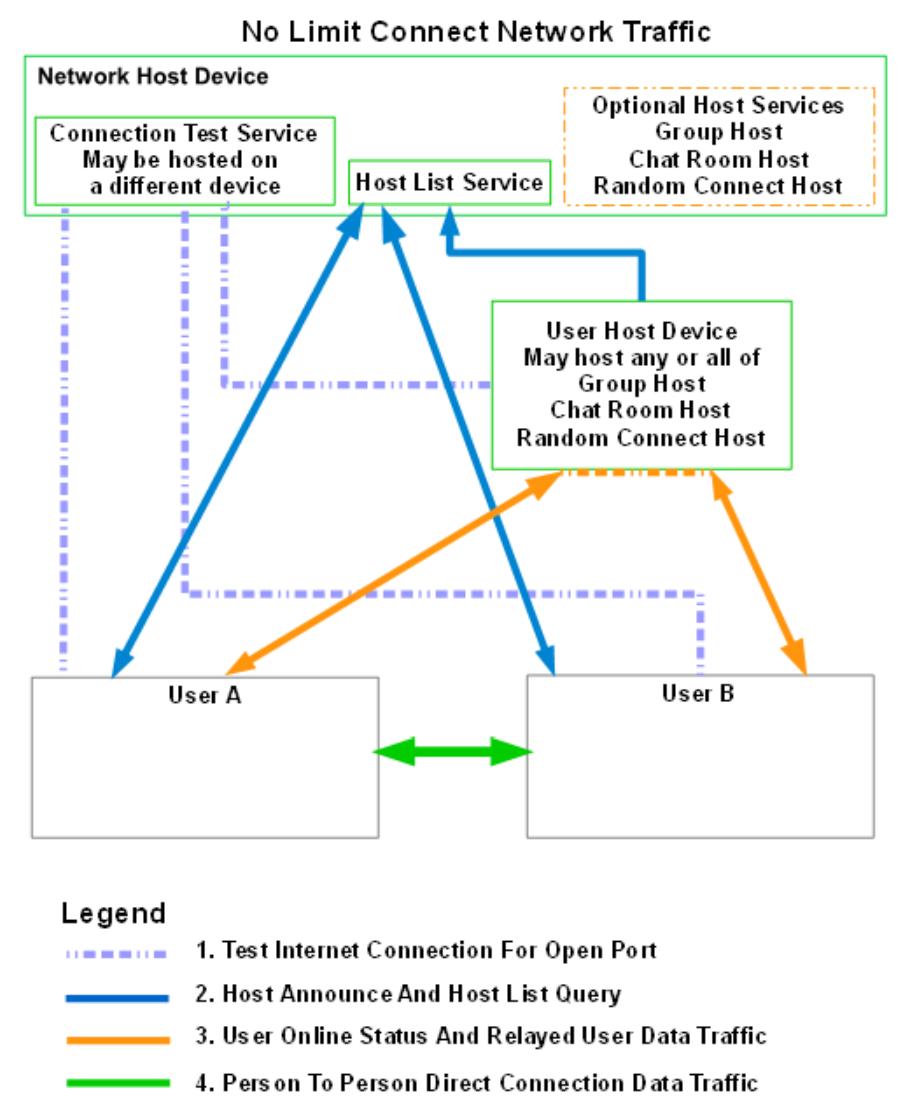
Legend:
- Purple dashed — Connection test
- Blue — Host announcements and host list queries
- Orange — Relayed traffic for users without open ports
- Green — Direct peer-to-peer traffic
📶 Connection Status Indicator Bars
These icons indicate your current network test state and connectivity level.
| Icon | Meaning |
|---|---|
 |
Internet detected — beginning network check |
 |
Connection Test service available |
 |
Network Host service is available |
 |
Testing if you have an open port |
 |
Using Relay — port is not open, relay required |
 |
Direct Mode — port open, direct connections available |
 |
Hosting (Direct) — hosting services with open port |
📒 Beginner-Friendly Explanation
When you open NoLimitConnect, the app checks whether you can accept incoming connections.
- Yellow bars → The app is testing your network and NAT configuration
- Orange bars → You are online but in relay mode (your port isn’t open)
- Green bars → Your port is open, and you can host or connect directly
Even if your port cannot be opened, NoLimitConnect still works — the host handles relaying automatically.
📘 Technical Explanation (For Advanced Users)
NAT & Port Forwarding
Most users are behind:
- Home NAT
- ISP-level NAT
- Firewalls
These block unsolicited inbound connections.
NoLimitConnect therefore:
1. Determines your NAT type
2. Tests if inbound TCP traffic can reach you
3. Switches to relay mode if necessary
Direct Mode (Green)
Direct mode is active when:
- UPnP succeeds
- Manual port forwarding is configured
- NAT supports inbound mappings
- Firewalls are not blocking
Direct mode is required to host.
Relay Mode (Orange)
Relay mode activates when:
- Your port is closed
- You are behind symmetric NAT
- Your ISP uses CGNAT
- Firewalls block inbound requests
Traffic flows:
The host relays data for users without open ports.
Hosted Direct Mode
Hosting always requires:
- A stable public IP
- An open port
If your port is closed:
- You cannot host
- You can only join existing hosts
- Traffic to other users must pass through the host's relaying
🔧 Troubleshooting Port Status
If you want direct mode or hosting ability:
- Enable UPnP on your router
- Port-forward your assigned NoLimitConnect port
- Ensure firewalls allow incoming TCP on that port
- Avoid mobile hotspots — most block inbound traffic
- Consider Hide.me VPN (supports automatic port forwarding)